

Overview
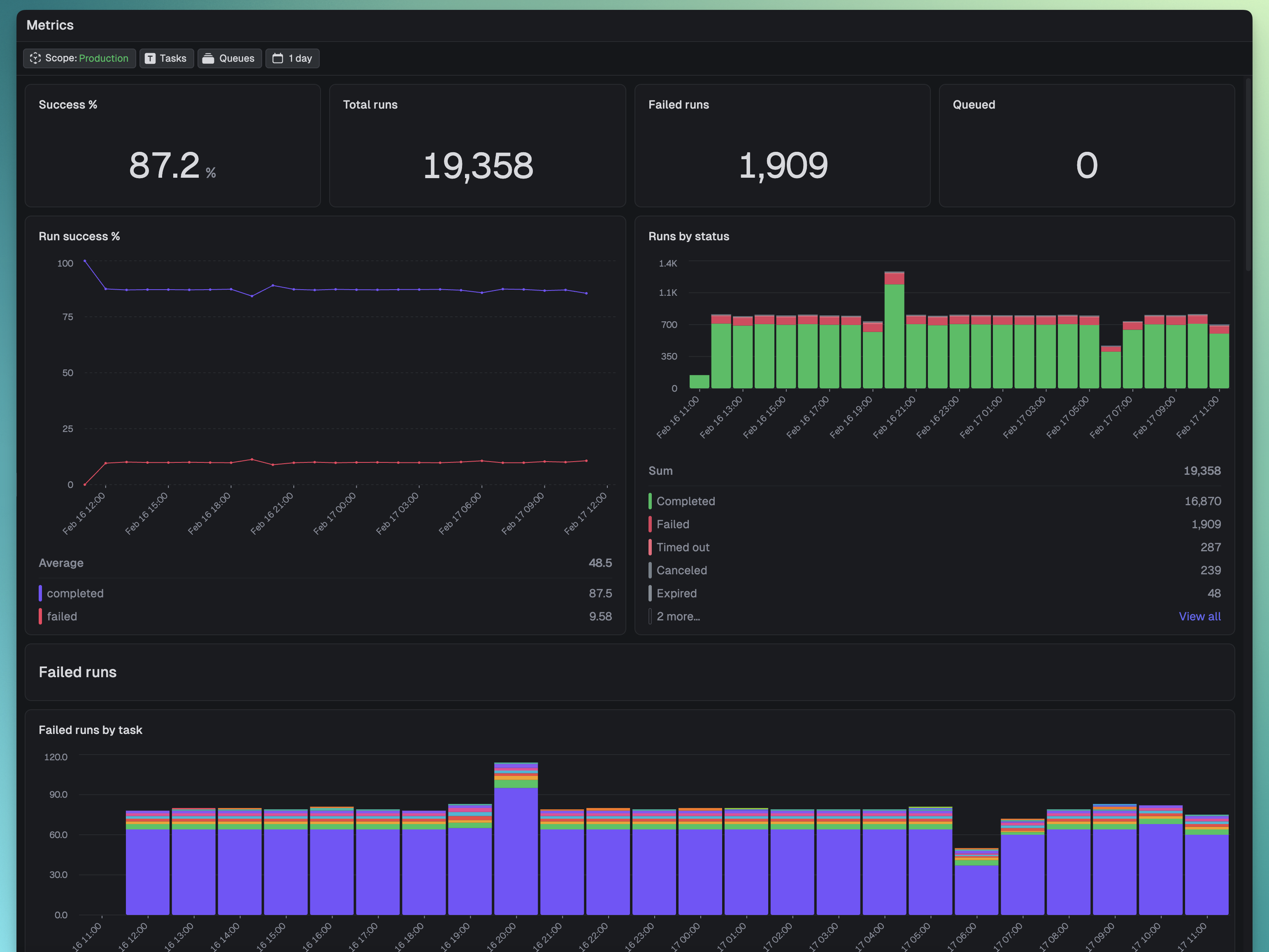
In the Trigger.dev dashboard we have built-in dashboards and you can create your own. Dashboards are powered by TRQL queries with widgets that can be displayed as charts, tables, or single values. They automatically refresh to show the latest data.Available metrics data
Trigger.dev automatically collects process metrics (CPU, memory) and Node.js runtime metrics (event loop, heap) for all deployed tasks — no configuration needed. Requires SDK version 4.4.1 or later. You can also create custom metrics using theotel.metrics API from the SDK.
All of this data is available in the metrics table for use in dashboard widgets. See Logging, tracing & metrics for the full list of automatic metrics and how to create custom ones, or the Query page for the metrics table schema.
Visualization types
- Line chart - Show trends over time
- Bar chart - Compare values across categories
- Area chart - Display cumulative trends
- Table - Show detailed data in rows
- Single value - Display a single metric (count, sum, average, etc.)
Filtering and time ranges
All widgets on a dashboard use the time range filter applied to the dashboard. You can also filter the data by:- Scope: Environment, Project, Organization
- Tasks
- Queues
Creating custom dashboards
- In the sidebar click the + icon next to “Dashboards”.
- Name your custom dashboard.
- From the top-right you can “Add chart” or “Add title”.
- For charts you write TRQL queries and choose a visualization type.
- You can resize and reposition widgets on your dashboards.
Managing dashboards with the SDK
Custom dashboards can also be created and edited from code, so you can keep them in your repository and set them up from CI or a script.query.dashboards covers the same operations as the dashboard UI.
scripts/dashboards.ts
position are stacked full width in the order you list them. Pass position: { x, y, w, h } on a 12-column grid to place a widget yourself.
To keep a dashboard in sync with code, replace all of its widgets in one call. Widgets you keep, matched by id, stay where they are unless you pass a new position:
scripts/dashboards.ts
revision is optional. When you pass the revision you last read, the write fails with a 409 if someone changed the dashboard in the meantime, instead of overwriting their change.
Every widget query is checked against the queryable tables when you save it, so a typo in a table or column name fails the request with the list of valid columns. query.dashboards.widgets.add, widgets.update and widgets.del change one widget at a time. Creating a dashboard or widget past your plan’s limits returns a 403. See the Query API reference for every endpoint.
Performance considerations
Optimize queries for metrics
- Use time bucketing -
timeBucket()automatically groups by appropriate intervals - Limit result size - Add
LIMITclauses, especially for table widgets - Use approximate functions -
uniq()instead ofuniqExact()for faster approximate counts
Exporting metric data
Export data from any metric widget:- Click the widget menu (three dots)
- Select “Copy JSON” or “Copy CSV”
Best practices
- Start simple - Begin with basic metrics and iterate based on insights
- Use meaningful names - Give widgets clear, descriptive titles
- Group related metrics - Organize dashboards by theme (performance, costs, errors)
- Test queries first - Use the Query page to develop and test before adding to dashboards
Troubleshooting
Widget shows “No data”
- Check that your query returns results in the Query page
- Verify time filters include the period with data
- Ensure task/queue filters match existing runs
Widget is slow to load
- Add time range filters to your query
- Use
LIMITclauses - Simplify aggregations
- Check query execution time in Query page
Chart displays incorrectly
- Verify column names match visualization config
- Check data types (numbers for charts, dates for time series)
- Ensure
timeBucket()is used for time-series charts - Review that series columns exist in query results
Limits
Dashboards are powered by Query so have the same limits as Query. There is a separate concurrency limits for metric widgets.
See Limits for details.